
Image Resolution Checker – Check Image Size, Pixels & Resolution
An Image Resolution Checker makes it easy to find the actual pixel dimensions, megapixels, aspect ratio, file size, and format of a photo. Instead of opening an image editor or installing software, you can check these details directly in your browser.
The image is processed locally on your device — no uploads, no servers, no waiting. Just drop your file and get accurate results instantly.
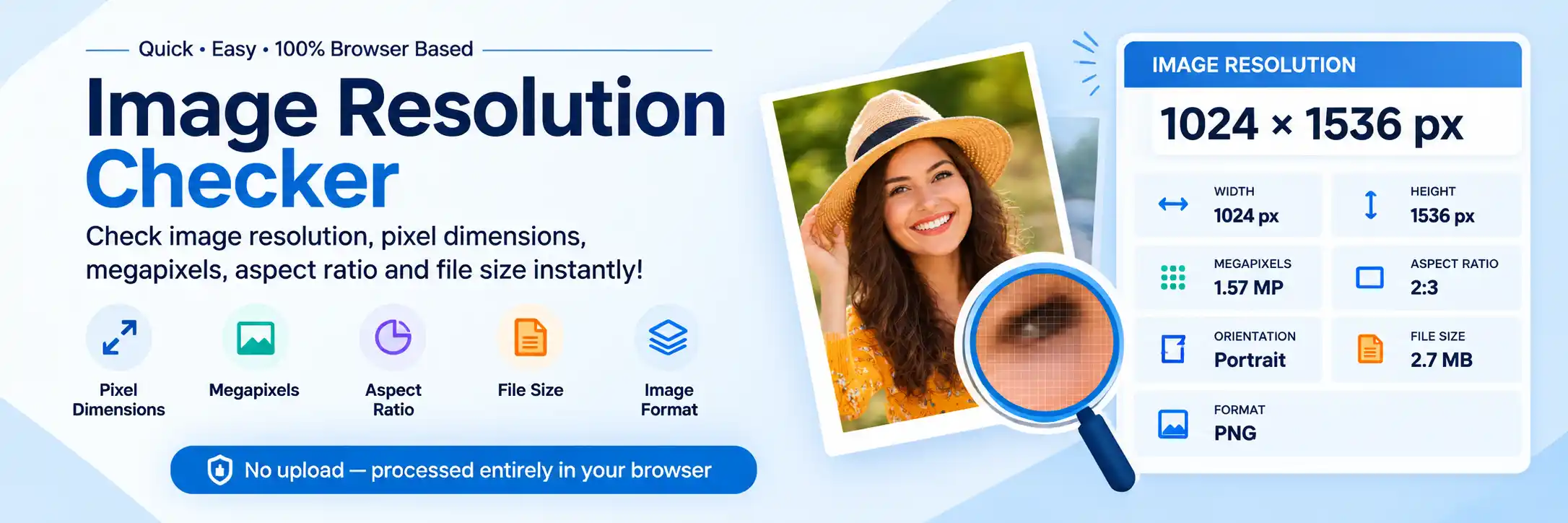
Check Your Image Resolution Online
Use our Image Resolution Checker to quickly inspect an image. Select a JPG, PNG, or WebP file, and the tool instantly displays its dimensions and other important information.
The image is processed directly in your browser, so there is no need to upload your photo to a server.
You can see:
- Width and height in pixels
- Total megapixels
- Aspect ratio
- Portrait, landscape, or square orientation
- Image format
- File size
- Estimated print dimensions
This is useful when a website, application, printing service, or social media platform asks for a specific image size.
What Is Image Resolution?
Image resolution generally describes how much pixel information an image contains. For a digital photo, the most useful measurement is its pixel dimensions.
For example, an image measuring 1920 × 1080 pixels contains 1,920 pixels across and 1,080 pixels vertically. Multiplying these numbers gives approximately 2.07 million pixels, or 2.07 megapixels.
Pixel dimensions are especially important when working with images for websites, screens, digital applications, and social media.
For print, resolution also involves the relationship between pixels and the physical size of the printed image. You can learn more about image dimensions and resolution from Adobe's image size and resolution guide.
How to Check Image Resolution
Checking a photo with an Image Resolution Checker is simple:
- Select Your Image — Choose a JPG, PNG, or WebP image from your computer, phone, or tablet.
- View the Image Dimensions — The tool reads the image locally and displays its width and height in pixels. For example: Width: 1920 px · Height: 1080 px.
- Check the Additional Details — You can also see the megapixels, aspect ratio, orientation, format, and file size.
- No Installation Required — There is no need to install an image editor just to perform a basic image resolution check.
What Does 1920 × 1080 Resolution Mean?
When an image is listed as 1920 × 1080 pixels, the first number represents its width and the second represents its height.
That means the image contains:
- 1,920 pixels wide
- 1,080 pixels tall
- 2.07 megapixels
- 16:9 aspect ratio
- Landscape orientation
The same approach works for virtually any raster image. For example, a 1200 × 1800 photo contains 2.16 million pixels and has a 2:3 aspect ratio.
Image Resolution vs File Size
Image resolution and file size are two different things.
Resolution refers primarily to the number of pixels in an image, while file size refers to how much storage space the image uses.
For example, two JPEG images could both be 2000 × 1500 pixels, but one might be 500 KB while another is 2 MB.
The difference can result from factors such as JPEG compression, image content, metadata, and encoding settings.
Therefore, a larger file does not automatically mean that the image has a higher resolution. That is why checking the pixel count with an Image Resolution Checker matters more than looking at the file size alone.
Is Higher Image Resolution Always Better?
Not necessarily. A larger image contains more pixels, but the best resolution depends on how the image will be used.
For example:
- A small website image may not need thousands of pixels.
- A high-resolution photograph may be useful for large prints.
- A social media platform may have specific recommended dimensions.
- A government or application form may require exact pixel dimensions.
- A large poster needs considerably more pixel information than a small online thumbnail.
For this reason, check the required image dimensions for your intended use rather than simply choosing the largest possible image. An Image Resolution Checker shows the exact numbers, so you can compare against any requirement.
Image Resolution and Megapixels
Megapixels provide another way to describe the total number of pixels in an image.
The calculation is:
Width × Height ÷ 1,000,000 = Megapixels
For example:
4000 × 3000 ÷ 1,000,000 = 12 MP
So a 4000 × 3000 image contains approximately 12 million pixels.
Megapixels can be useful when comparing photographs, but they do not tell the entire story about image quality. Sharpness, focus, lens quality, noise, compression, lighting, and other factors also affect how an image looks.
Picture Resolution Checker for Photos
A picture resolution checker can be useful when you receive a photograph and need to know whether it meets a particular pixel requirement.
For example, suppose an application requires an image that is at least 1200 × 1600 pixels. You can select your photo and compare its actual dimensions with the requirement.
If the image is only 600 × 800 pixels, simply changing its file size or DPI metadata will not create the missing original pixel information.
This is why checking the actual pixel dimensions with an Image Resolution Checker is important before resizing or preparing an image for an application.
How to Check Photo DPI and Resolution
People often use the terms DPI and resolution interchangeably, but they are not exactly the same.
For digital images, pixel dimensions tell you how many pixels the image contains. DPI or PPI information is more relevant when relating an image to physical printing dimensions.
If you specifically need to check photo DPI, use our dedicated DPI Checker. That tool is designed to inspect available DPI information separately from the pixel dimensions.
What Is a Good Image Resolution?
There is no single resolution that is ideal for every situation. A useful rule is to start with the requirements of the website, application, display, or printing service where the image will be used.
| Use Case | Resolution Consideration |
|---|---|
| Website | Depends on displayed dimensions |
| Social Media | Follow the platform's recommended dimensions |
| Digital Applications | Follow the required pixel dimensions |
| Small Prints | Moderate pixel dimensions may be sufficient |
| Large Prints | More pixels are generally useful |
| Photography | Higher dimensions provide more flexibility |
For printing, the desired physical print size also matters. Pixel dimensions can be divided by the intended PPI to estimate the resulting print dimensions. Running your file through an Image Resolution Checker gives you the base pixel count needed for any such calculation.
iPhone Photo Resolution
Modern iPhone cameras can produce photographs with substantially different pixel dimensions depending on the camera, capture mode, and settings.
Rather than guessing the resolution from the phone model, you can simply select the photograph and check its actual pixel dimensions.
For example, your photo might show:
3024 × 4032 pixels
That gives you a more reliable measurement of the actual image than simply knowing that it came from an iPhone.
Image Quality Checker vs Resolution Checker
Resolution is only one part of image quality. An image quality checker may consider factors such as sharpness, compression, noise, and other visual characteristics.
This Image Resolution Checker focuses on measurable image properties such as:
- Pixel dimensions
- Megapixels
- Aspect ratio
- File format
- File size
- Orientation
A photo with a large pixel count can still look poor if it is badly focused, heavily compressed, or affected by motion blur.
Is DPI the Same as Image Resolution?
No. An image can have a particular pixel dimension regardless of the DPI or PPI value associated with its print settings.
For example, a 3000 × 2000 pixel image still contains 3000 × 2000 pixels whether its metadata indicates 72 PPI, 150 PPI, or 300 PPI.
Changing a metadata value alone does not add pixels to the image. To increase the pixel dimensions, an image must be resized or resampled, which creates additional pixels rather than recovering original detail. Verifying the true pixel size with an Image Resolution Checker prevents confusion caused by metadata alone.
Frequently Asked Questions (FAQs)
Select your image in the Image Resolution Checker above. It will automatically read the image dimensions and show the width and height in pixels, along with megapixels, aspect ratio, format, and file size.
A 1920 × 1080 image contains approximately 2.07 million pixels, or 2.07 megapixels. It has a 16:9 aspect ratio.
Not exactly. Image resolution generally refers to the pixel dimensions, while image size can refer to either pixel dimensions or the file's storage size depending on the context.
Changing DPI or PPI metadata alone does not add pixels. To increase the pixel dimensions, an image must be resized or resampled, which creates additional pixels through interpolation rather than recovering original detail.
You can check the actual pixel dimensions of an iPhone photo by selecting it in an image information tool such as this one. The result will show the photo's width and height in pixels.
This Image Resolution Checker is primarily designed to check pixel dimensions and image resolution. If you need to inspect embedded DPI information, use the DPI Checker instead.
Not always. More pixels can provide more detail and flexibility, but focus, sharpness, lighting, compression, camera quality, and other factors also affect the final image.
Know Your Image Dimensions Before You Upload
Checking the pixel dimensions of an image is useful before uploading, printing, resizing, or submitting a photo to a website or application. This Image Resolution Checker provides the essential image information directly in your browser without requiring additional software.
What makes this tool stand out:
✓ Instant pixel readout · ✓ Accurate megapixels · ✓ 100% browser-based · ✓ Zero uploads · ✓ Always free
For users specifically checking embedded DPI information, use the DPI Checker.