
Photo & Signature Joiner: Merge Photo and Signature Online for Government Forms
Photo & Signature Joiner solves a common problem: most government exam and job forms — SSC, UPSC, IBPS, Railway — ask for your photo with signature combined into a single image. Doing that by hand means opening Paint or Photoshop, guessing at pixel dimensions, and compressing the file over and over until it fits the KB limit on the notification.
The merge photo and signature tool does it in one pass. Upload your photo, upload your signature, pick a layout, and it merges the two into a correctly-sized image — right in your browser, with nothing ever sent to a server. Whether you search for a way to merge photo and signature, a photo signature joiner, a photo sign joiner, or a tool to simply add your signature to a photo, it's the same result: two files in, one form-ready image out.
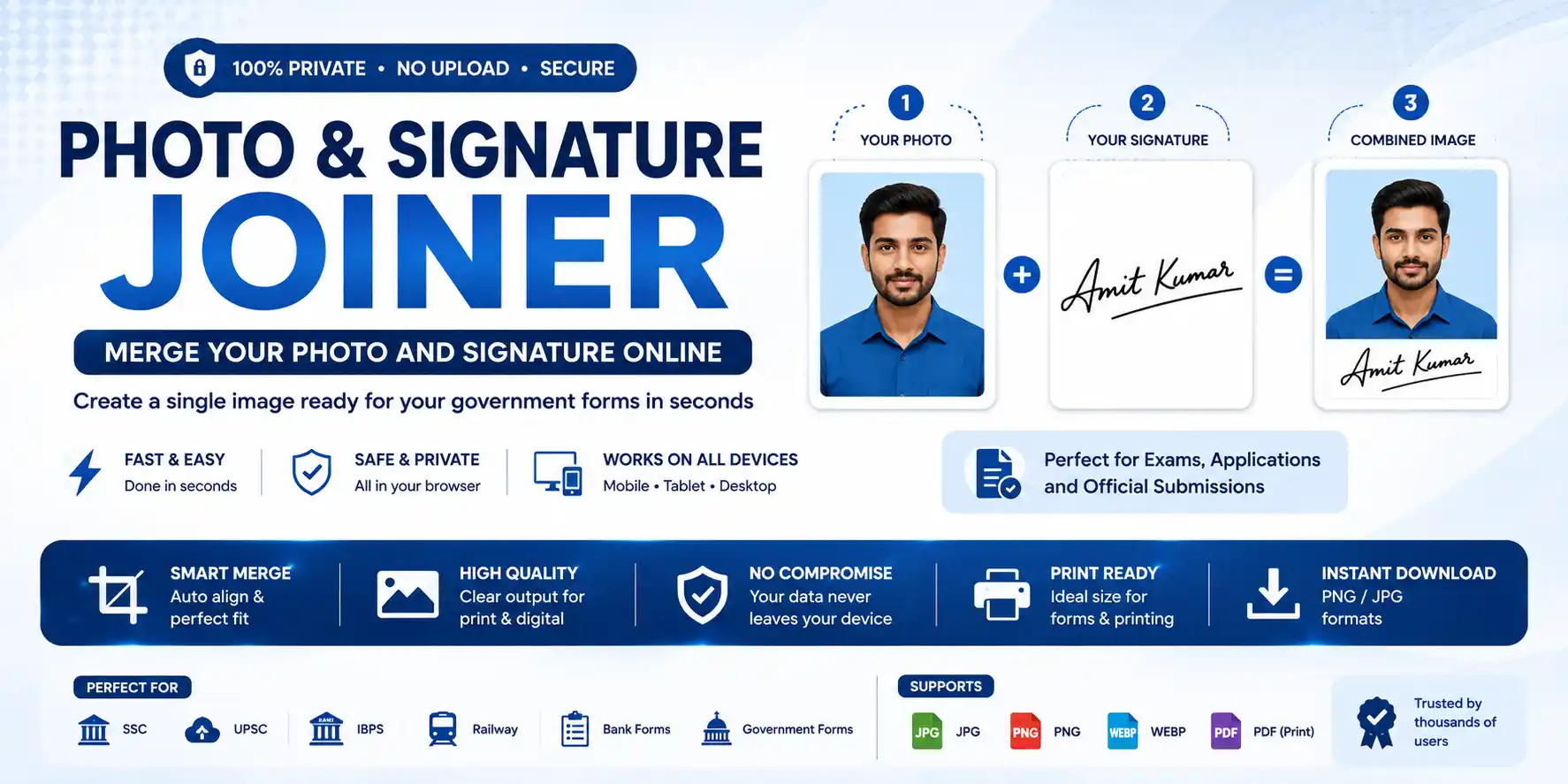
Combine your photo and signature into a single, form-ready image with the Photo & Signature Joiner.
Why You Need a Photo with Signature Combined
Government application portals rarely accept photo and signature as two separate uploads when the notification specifies a joint image. Without a dedicated tool like the Photo & Signature Joiner, getting your photo with signature right means:
- — Opening a heavy desktop editor just to place two images next to each other
- — Manually converting cm/inch specs from the notification into pixels
- — Repeated trial-and-error compression to hit an exact KB limit
- — Re-uploading to the portal every time the file gets rejected for being the wrong size
A browser-based photo with signature merge tool replaces all four steps with one upload-and-download flow.
Photo & Signature Size Requirements by Exam
Every exam body sets its own rules, and portals will reject your form outright if you're outside the range. Keep your notification open, but here's what's typical:
| Exam / Category | Photo Size | Signature Size | Typical Dimensions |
|---|---|---|---|
| SSC (CGL / CHSL / MTS) | 20–50 KB | 10–20 KB | ~3.5 × 4.5 cm (photo) |
| UPSC (Civil Services) | 20–300 KB | 20–300 KB | 200×230 px (photo), 400×100 px (signature) |
| IBPS / SBI / Banking | 20–50 KB | 10–20 KB | 200×230 px (photo), 140×60 px (signature) |
| Railway (RRB NTPC / Group D) | 20–50 KB | 10–20 KB | 3.5 × 4.5 cm (photo) |
| State PSC (TSPSC, MPPSC, RPSC, BPSC, OPSC, etc.) | Varies — check notification | Varies — check notification | Often 5 × 6 cm combined |
| NEET / Admissions | Varies — check notification | Varies — check notification | Varies |
Always confirm against your specific notification — this table is a starting reference, not a substitute for it. The Photo & Signature Joiner lets you set Dimensions, Format, and Target size (KB) fields that map directly onto these requirements.
How to Merge Photo and Signature Online
- Upload your photo — click or drag it into the photo area.
- Upload your signature — same for the signature area.
- Pick a layout — choose how your photo with signature should be arranged (see below).
- Set your dimensions, format, and target KB — matching your form's exact requirement.
- Download — the merged image is compressed to fit your KB target at maximum possible quality, ready to upload.
No account, no watermark, and nothing leaves your device — the whole process runs client-side in your browser, so you can merge photo and signature online without either file ever touching a server.
Choosing the Right Layout for Your Photo and Signature
Most tools that merge photo and signature online give you one or two fixed layouts. This photo sign merge tool gives you six, because different exam boards specify different arrangements for a combined photo with signature:
Layout Descriptions
- Vertical — photo on top, signature below (the most common format across SSC, Railway, and most state boards).
- Vertical Opposite — signature on top, photo below, for the rarer forms that ask for it in that order.
- Side by Side — photo left, signature right, used by some banking and state PSC portals.
- Side by Side Opposite — signature left, photo right.
- Overlap — signature placed over the lower portion of the photo, stamp-style, for forms that want a single photo with an embedded signature.
- GAP / NO GAP — control whether there's spacing between the photo and signature blocks.
Advanced Controls for Photo Signature Merge
- Margin control — fine-tune the padding inside each block independently of the layout choice.
- Format selection — choose between JPEG, PNG, or WEBP output.
- Target size — set the exact KB limit for your merged image.
- Real-time preview — see your merged image update instantly as you make changes.
🔒 Why It's Safe to Use Photo & Signature Joiner
A fair question, given you're handling identity documents. Photo & Signature Joiner processes everything entirely in your browser using HTML5 Canvas — your photo and signature are never uploaded to a server, never stored, and disappear the moment you close the tab. There's no sign-up, no tracking of your images, and it works even with your internet disconnected once the page has loaded.
100% private & secure — your files stay on your device, always.
Frequently Asked Questions
Upload your photo and signature into Photo & Signature Joiner, choose a layout (vertical, side by side, or overlap), set the pixel dimensions and file size your form requires, and download. No editing software needed.
Same process — upload both files, pick a layout, set your target dimensions and KB size, and download the merged result directly from your browser using Photo & Signature Joiner.
It depends on the exam — SSC and Railway typically want 20–50 KB photos and 10–20 KB signatures, while UPSC allows up to 300 KB for both. Always check your specific notification first, then set those exact numbers in the Dimensions and Target size fields of Photo & Signature Joiner.
Yes — you can merge photo and signature directly in your browser. Upload both images, pick a layout, and download.
JPEG is accepted by nearly every Indian government portal and compresses more efficiently to hit strict KB limits. Use PNG only if your notification explicitly asks for it. Photo & Signature Joiner supports both.
Only if the tool processes images client-side. Photo & Signature Joiner never sends your files to a server — everything happens locally in your browser.
Set your target size in the KB field before downloading. Photo & Signature Joiner compresses the final image to fit within that limit while preserving as much quality as possible.
GAP mode adds a small buffer between the photo and signature blocks; NO GAP mode places them edge-to-edge. Use NO GAP if your form's crop tool is strict about unused space in the uploaded image. You can toggle this easily in Photo & Signature Joiner.
Ready to Merge Your Photo and Signature?
Preparing images for government applications requires attention to specific technical details. Photo & Signature Joiner ensures your merged image meets all necessary specifications automatically.
Key benefits of Photo & Signature Joiner:
✓ No uploads, 100% private · ✓ Six layout options · ✓ Exact pixel dimensions · ✓ Smart compression to target KB · ✓ Free & unlimited
Try the photo with signature tool now — upload your photo and signature, pick a layout, and download your form-ready image in seconds.