
Image DPI Checker
Check the DPI and resolution information of your image instantly.
Drag & drop your image here
You will see detailed results including:
Image DPI Checker
DPI checker is a fast and reliable online tool that helps you find the embedded DPI (dots per inch) information of an image before printing, submitting it for an application, or preparing a document. Simply select your image and the tool reads the available resolution metadata directly in your browser — no upload, no server processing, and no hidden changes to your original file. For example, you can check the DPI of your image before uploading it to a printing service like Printify.
What Is DPI?
DPI stands for dots per inch. It is a measurement commonly associated with printing and describes the number of dots represented within one inch.
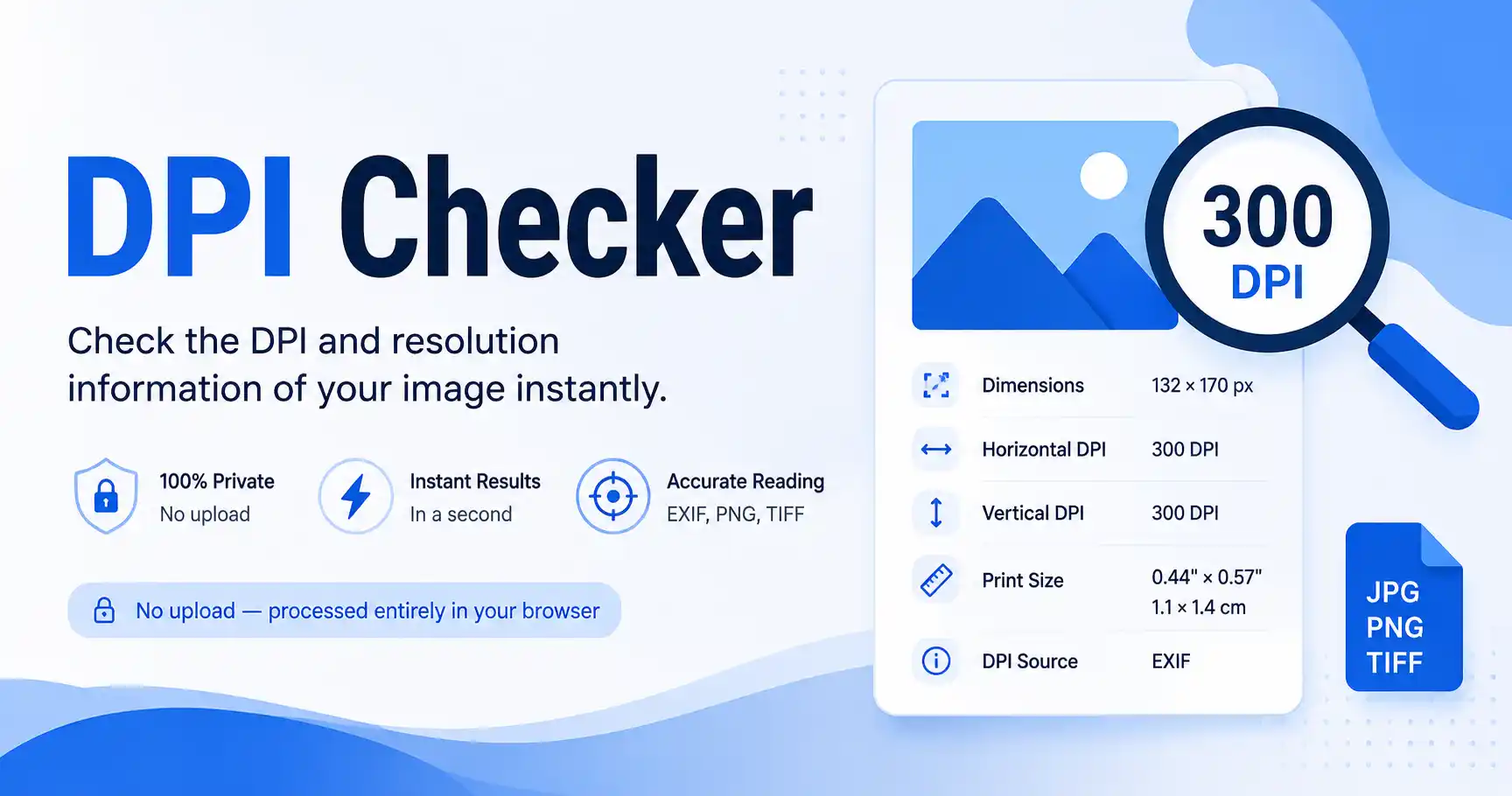
When working with digital images, DPI is often used to describe the physical printing resolution of an image. For example, an image containing embedded information of 300 DPI can be interpreted differently for printing than the same pixel dimensions with a different resolution setting.
It is important to understand that pixels and DPI are not the same thing. Pixels describe the digital dimensions of an image, such as 132 × 170 pixels, while DPI describes the physical resolution information associated with those pixels for printing.
How to Check the DPI of an Image?
Checking the resolution information of a photograph is simple.
- Select your image (JPG, PNG, or TIFF) using the file picker or drag-and-drop.
- The tool reads the image's available resolution metadata directly inside your browser.
- View the result – horizontal DPI, vertical DPI, dimensions, file size, print size, and DPI source.
This makes it easier to determine the dpi of an image before using it for printing or document submission.
What Information Does the Tool Show?
A useful image resolution checker should provide more than just one DPI number. Our tool displays several important properties together.
📐 Horizontal DPI
This represents the horizontal resolution information detected from the image metadata.
📏 Vertical DPI
This represents the vertical resolution information. In many images it will be the same as the horizontal value, but they can sometimes be different.
For example: 300 DPI × 300 DPI or 300 DPI × 150 DPI. The tool keeps these values separate instead of assuming they are identical.
🖼️ Image Dimensions
The dimensions show the actual pixel size of the image, for example 132 × 170 px. This information is different from DPI and should not be confused with physical print dimensions.
💾 File Size
The result can also show the size of the original image, such as 36.5 KB. This is useful when an application requires both specific image dimensions and a particular file-size range.
🖨️ Print Size
When valid DPI information is available, the tool can calculate the approximate physical print size. For example, 132 × 170 pixels at 300 DPI corresponds to approximately 0.44 × 0.57 inches (or 1.1 × 1.4 cm).
🔍 DPI Source
Resolution information can be stored in different parts of an image file. The result indicates whether the value was detected from EXIF, JFIF, PNG resolution metadata, or TIFF metadata. If no usable resolution information is embedded, the tool identifies it as unavailable rather than assigning an assumed value.
Why Does an Image Sometimes Have No DPI Information?
Not every image contains embedded DPI information. An image may have perfectly valid pixel dimensions while containing no physical resolution metadata.
For example, an image can be 1000 × 1000 pixels without having an embedded DPI value. In such a situation, it would be incorrect to automatically claim that the image is 72 DPI, 96 DPI, or 300 DPI.
The absence of metadata does not necessarily mean that the image is poor quality. It simply means that the file does not contain usable embedded DPI information. This is why an accurate image DPI check should distinguish between an actual embedded value and missing metadata.
Is 300 DPI Better for Printing?
300 DPI is commonly associated with high-quality printing, particularly for photographs and detailed printed material. However, the appropriate resolution depends on the intended output, physical size, viewing distance, printer, and specific application requirements.
For example, a government form may explicitly request a particular DPI, pixel dimension, or file size. In that situation, you should follow the exact requirements of the organization rather than relying on a general DPI recommendation.
DPI by itself does not determine every aspect of image quality. Pixel dimensions, image compression, sharpness, original image quality, and physical print size can all affect the final result.
🔁 DPI vs Image Resolution
DPI and image resolution are related, but they are not interchangeable terms.
Consider an image that is 1200 × 1800 pixels. Those numbers describe the pixel dimensions. If the image contains 300 DPI resolution metadata, the physical print dimensions can be calculated from those pixel dimensions.
The same pixel dimensions can also be associated with another DPI value, resulting in a different calculated physical print size.
📐 Define Resolution: Key Concepts
- Pixel dimensions — how many pixels the image contains.
- DPI — physical resolution information commonly used for printing.
- Print size — the physical dimensions calculated from pixels and DPI.
What Is the Full Form of DPI?
The full form of DPI is Dots Per Inch. The term describes the number of dots represented within one inch and is commonly used when discussing printing resolution. The DPI full form is therefore: DPI = Dots Per Inch.
Although the term is widely used for image and printing applications, the actual meaning of a DPI value depends on how the resolution information is being used.
Does DPI Affect Image Quality?
DPI can affect the physical size and perceived detail of a printed image, but it should not be considered the only measurement of image quality. For example, changing the DPI metadata of an image without changing its pixel dimensions does not magically create additional image detail.
A low-resolution photograph with limited pixel information cannot automatically become a high-quality photograph simply by assigning it a higher DPI value. For printing, consider the combination of pixel dimensions, DPI, physical print size, image sharpness, compression, and printer capabilities.
What Is a Good DPI for an Image?
There is no single DPI value that is correct for every situation. Different applications have different requirements.
For example, screen-based content may not require the same resolution information as a high-quality printed photograph. Government applications, photo-printing services, scanning systems, and professional printing workflows may each specify their own requirements.
If a particular application asks for 300 DPI, you should follow that requirement. If it specifies only pixel dimensions and file size, those requirements should also be followed. The safest approach is to check the exact specifications before preparing the final image.
📷 Can I Check the DPI of a JPG Image?
Yes. JPG and JPEG files commonly contain resolution information in metadata such as EXIF or JFIF. The tool can examine the available metadata and report the detected horizontal and vertical values. If the JPG does not contain usable DPI metadata, the result will clearly indicate that the information is not embedded.
🖼️ Can I Check PNG DPI?
Yes, provided the PNG contains usable resolution metadata. PNG files can store physical resolution information through the pHYs chunk. This information can be converted into DPI for display. However, not every PNG contains a pHYs chunk; therefore, a PNG may have valid pixel dimensions but no embedded DPI information.
📄 Can I Check TIFF DPI?
Yes. TIFF files can contain resolution information through their metadata. A TIFF image may contain separate horizontal and vertical resolution values along with a resolution unit. The tool can read this information and present it in an easier-to-understand format.
🔒 Is the Image Uploaded to a Server?
No. The tool is designed for browser-based processing. Your selected image can be read locally by your browser to extract the available image information. This means you can check the file without sending the original photograph to a remote image-processing service — especially useful for personal documents.
DPI Checker vs Image DPI Converter
A checker and a converter perform different jobs. A checker reads the existing information from an image and tells you what is already stored in the file. A converter, on the other hand, is intended to change the image's resolution metadata or otherwise prepare the image according to a required specification.
If you only want to find out what resolution information your existing image contains, you should use a checker first. If the image needs a different resolution setting afterward, a separate Image DPI Converter tool may be appropriate.
Frequently Asked Questions (FAQs)
DPI stands for Dots Per Inch. It is commonly used to describe resolution in printing and image-related workflows.
Select your image in the tool. It reads available resolution metadata and displays the horizontal DPI, vertical DPI, dimensions, file size, print size, and metadata source.
Use the tool to inspect the embedded resolution information. If the image contains 300 DPI metadata, the result will display the corresponding value.
Pixels describe the digital dimensions of an image, while DPI describes physical resolution information commonly associated with printing. A pixel dimension such as 1200 × 1800 does not by itself tell you the embedded DPI.
The image may not contain embedded resolution metadata. This is different from having a DPI value of zero. The file can still have valid pixel dimensions even when DPI information is unavailable.
No. The correct value depends on the purpose of the image and the requirements of the application, printer, organization, or printing workflow.
Yes. A browser-based checker can read supported image metadata locally without sending the original image to a server.
The tool is designed to support common formats such as JPG/JPEG, PNG, and TIFF. The available resolution information depends on the metadata contained in the individual file.
Changing a DPI value alone does not create new image detail. Pixel dimensions, image quality, compression, and physical print size also need to be considered.
Ready to Check Your Image DPI?
The DPI Checker is the easiest way to inspect your image's available DPI information, pixel dimensions, file size, print size, and metadata source directly in your browser. No uploads, no hidden processing — just accurate, local metadata reading.
Why users trust this tool:
✓ 100% browser-based · ✓ No uploads · ✓ Accurate metadata reading · ✓ Supports JPG, PNG, TIFF · ✓ Completely free
For the most accurate result, always compare the detected information with the exact requirements of the website, application, printer, or organization where you intend to use the image.