
Voter ID Photo Resizer Online – Photo Size, DPI and Upload Requirements
A Voter ID Photo Resizer helps applicants understand the image dimensions, resolution, file format and file size needed when preparing a photograph for a Voter ID application. Submitting a photograph that does not match the application requirements may cause upload errors or require you to prepare the image again.
Before submitting your photograph, it is important to understand the required pixel dimensions, DPI, file size in KB and background guidelines. These specifications help ensure that your image is properly prepared and suitable for the application process.
In this guide, you will learn about Voter ID photo dimensions, pixel measurements, DPI, JPG format, file size limits and common photo upload problems.
Voter ID Photo Size and Specifications
Image requirements can vary depending on the application process and the instructions provided on the official portal. Therefore, applicants should check the latest requirements before uploading their photographs.
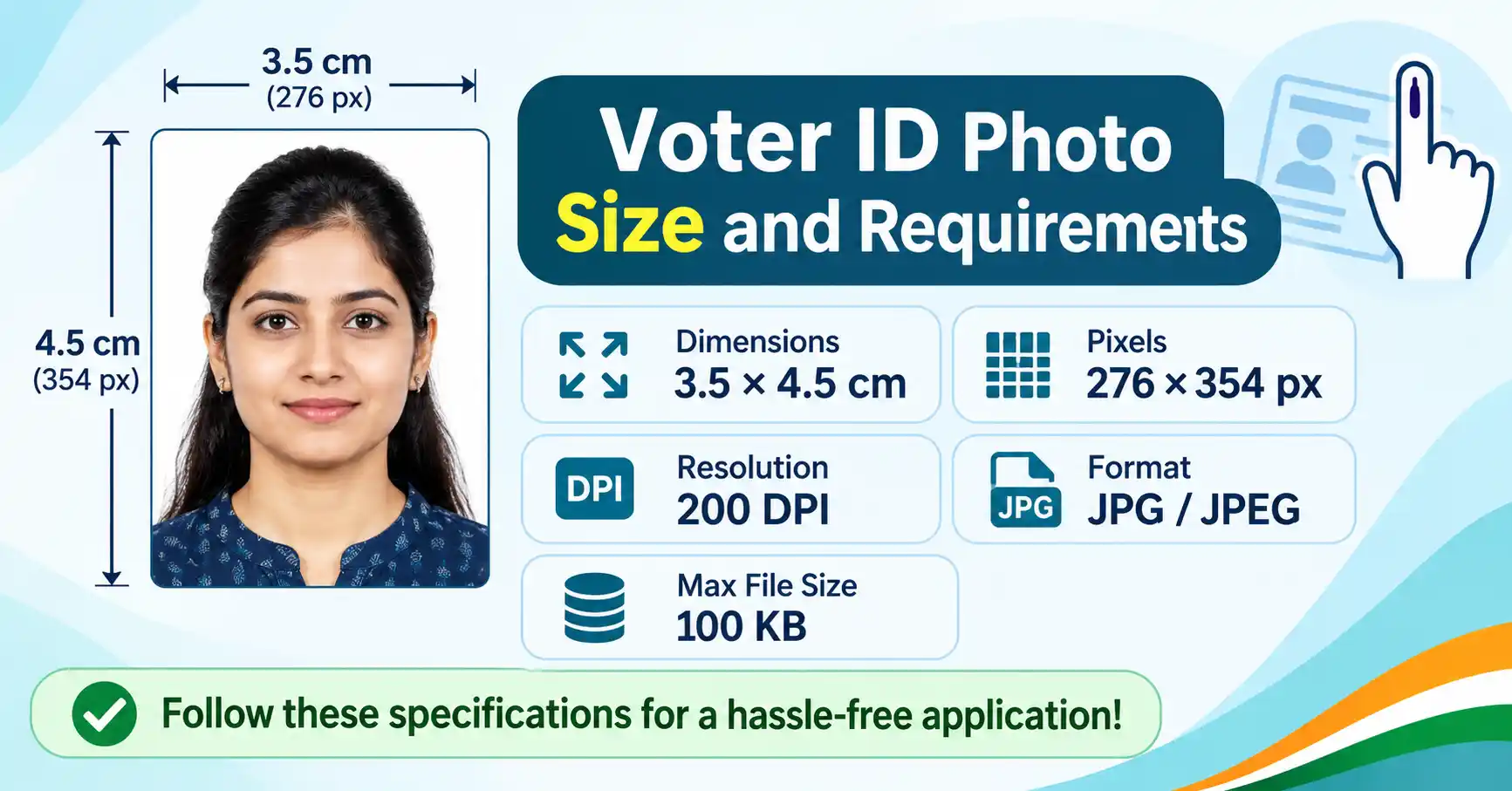
The following table shows the photo settings used in a common preparation configuration:
| Photo specification | Configured value |
|---|---|
| Photo dimensions | 3.5 × 4.5 cm |
| Width | 276 pixels |
| Height | 354 pixels |
| Resolution | 200 DPI |
| Image format | JPG / JPEG |
| Maximum file size | 100 KB |
| Background | White, where required |
Important: These values are preparation settings, not a confirmation that every Voter ID application uses identical specifications. Always check the current instructions on the official Election Commission of India (ECI) application portal.
Voter ID Photo Size in Pixels
Pixel dimensions determine the actual width and height of a digital photograph. When an application specifies an image size in pixels, the photograph must be prepared with those exact dimensions.
For the configuration shown above, the image dimensions are:
- Width: 276 pixels
- Height: 354 pixels
- Aspect ratio: 3.5:4.5
Maintaining the correct aspect ratio is important. If an image is stretched or resized incorrectly, the person's face may appear wider or narrower than its original appearance.
How to Convert Photo Size from CM to Pixels
You can calculate pixel dimensions from physical measurements and DPI using this formula:
For example, to calculate the width of a 3.5 cm photograph at 200 DPI:
(3.5 ÷ 2.54) × 200 ≈ 276 pixels
Similarly, a height of 4.5 cm at 200 DPI is approximately 354 pixels.
You can use an Image Size Calculator to understand the relationship between centimetres, inches, pixels and DPI.
What Is the DPI Requirement for a Voter ID Photograph?
DPI stands for Dots Per Inch. It describes the number of image dots represented per inch when an image is printed or interpreted at a physical size.
DPI is often included in image specifications because it helps define the relationship between physical dimensions and pixel dimensions.
For example:
- 72 DPI is commonly used for screen-oriented image metadata.
- 150 DPI provides a higher pixel density for a given physical size.
- 200 DPI is the resolution used in the preparation configuration described in this guide.
- 300 DPI is commonly used for high-resolution printing.
DPI and Pixel Dimensions Are Different
DPI and pixel dimensions are related, but they are not the same thing.
A photograph can have the correct pixel dimensions while containing different DPI metadata. Similarly, changing DPI metadata alone does not automatically improve the actual image quality or add more image detail.
If your application specifies a particular DPI value, make sure the image meets that instruction. You can learn more about image resolution using our online DPI converter.
Voter ID Photo Size in KB
File size is another important factor when preparing a photograph for an online application.
KB stands for Kilobyte, a unit used to measure digital file size. Application portals may specify minimum and maximum file sizes to control the amount of data uploaded.
For example, the preparation configuration discussed in this guide uses a maximum file size of 100 KB.
| File size | Meaning |
|---|---|
| 50 KB | Smaller image file |
| 100 KB | Configured maximum size |
| Above 100 KB | Exceeds the configured maximum |
Always follow the file size limit displayed on the application form. A photograph that exceeds the permitted limit may not upload successfully.
Does Reducing KB Affect Photo Quality?
Yes. Reducing the file size usually involves compressing the image. Excessive compression can make the photograph blurry, pixelated or unclear.
For a good result:
- Start with a clear, high-quality photograph.
- Maintain the required pixel dimensions.
- Avoid excessive JPEG compression.
- Check that facial details remain visible.
- Keep the final file within the permitted size range.
Remember that reducing file size and changing image dimensions are two different operations. A photograph can have the correct dimensions but still exceed the allowed file size.
Background and Image Requirements
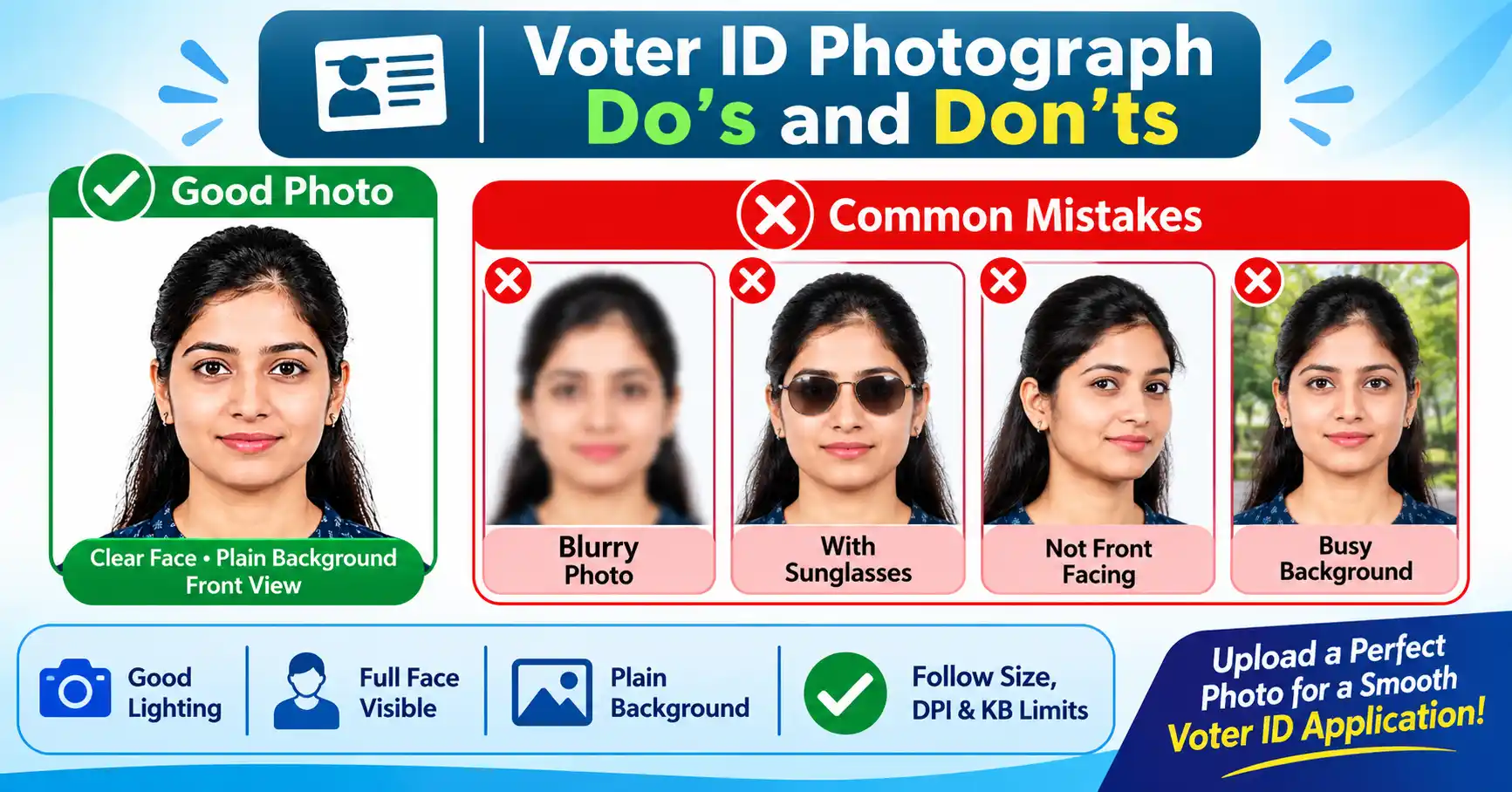
The photograph should clearly show the applicant's face and should be suitable for identification purposes. Follow the background and appearance instructions specified by the application portal.
Consider the following points before preparing your photograph:
- Plain background: Use a simple, uncluttered background. Use a white background if the application instructions specifically require it.
- Clear face: The applicant's face should be clearly visible.
- Proper lighting: Avoid very dark photographs and strong shadows across the face.
- Front-facing position: Keep the face directed towards the camera unless the instructions state otherwise.
- Good image quality: Avoid blurred, pixelated or heavily compressed photographs.
- Correct orientation: Make sure the photograph is upright and not rotated.
- No unnecessary objects: Avoid objects that cover important facial features.
A properly prepared photograph makes it easier for the application system to process the uploaded image.
Common Reasons for Voter ID Photo Upload Rejection
Sometimes an applicant may face problems while uploading a photograph. These problems can occur when the image does not match the portal's technical requirements or is not suitable for identification.
Here are some common reasons:
| Common problem | Possible solution |
|---|---|
| Incorrect pixel dimensions | Prepare the image according to the specified width and height. |
| File size too large | Reduce the JPEG file size without excessive compression. |
| Unsupported file format | Use the image format accepted by the portal. |
| Blurry photograph | Use a sharper, clearer original photograph. |
| Incorrect background | Follow the background instructions on the application portal. |
| Face not clearly visible | Use a front-facing photograph with proper lighting. |
| Incorrect image orientation | Rotate the photograph to the correct position. |
| Wrong aspect ratio | Maintain the required width-to-height proportion. |
Before submitting your application, check the photograph carefully rather than relying only on its file name or file size.
How to Prepare a Photograph Before Uploading
Preparing your photograph properly can help avoid common upload problems.
Follow these general preparation steps:
- Select a recent, clear photograph of the applicant.
- Check the required physical or pixel dimensions.
- Confirm the accepted image format, such as JPG or JPEG.
- Check the minimum and maximum file size mentioned in the application instructions.
- Make sure the background and facial appearance follow the stated guidelines.
- Preview the final image to check its orientation, clarity and proportions.
- Save the prepared photograph in an easily accessible folder.
- Select the correct image file when completing the online application.
If the portal provides its own photo preparation or upload instructions, follow those instructions first.
Do Voter ID Photo Requirements Change for Different Applications?
Photo requirements may differ depending on the type of application and the process being used.
For example, applicants may be completing a new voter registration, requesting corrections to existing details or submitting an application for another service.
Do not assume that the same photo dimensions and file size limits apply to every process. Read the instructions provided for your particular application before preparing the image.
For the most accurate information, refer to the official Election Commission of India website and the Voters' Services Portal.
Frequently Asked Questions (FAQs)
The required photo size depends on the instructions provided for the particular application. A commonly used preparation setting is 3.5 × 4.5 cm, but applicants should verify the current portal requirements.
One preparation configuration uses 276 × 354 pixels. However, the exact pixel dimensions should be checked against the current application instructions.
The configuration discussed in this guide uses 200 DPI. If the application specifies a different resolution, follow the official instruction.
The configuration described here uses a maximum file size of 100 KB. The actual permitted limit may vary depending on the application process.
JPG or JPEG is a commonly accepted photograph format. Always check the file formats supported by the application portal before uploading.
Not necessarily for every application. Use a white background when it is specifically required by the current application instructions.
A passport-style photograph may be a suitable starting image, but its dimensions, background, format and file size must match the applicable requirements.
Possible reasons include incorrect dimensions, excessive file size, an unsupported format or an image that does not meet the portal's requirements. Check the error message and correct the relevant issue.
Yes, a mobile phone can be used to take a photograph. Choose good lighting, a plain background and a front-facing position. Check the final image quality before submitting it.
You can check the latest application instructions through the official Voters' Services Portal or the Election Commission of India website.
Official Websites for Voter ID Information
For accurate and updated information about voter registration, corrections and application procedures, use the official government websites.
- Voters' Services Portal: https://voters.eci.gov.in/
- Election Commission of India: https://www.eci.gov.in/
Always refer to the latest official instructions before submitting your photograph or completing an online application.
Ready to Prepare Your Voting ID Application Photo?
Preparing a photograph with the correct dimensions, resolution, file format and file size is an important part of completing an online Voter ID application. Check the image specifications carefully, maintain good photo quality and follow the instructions provided on the official portal.
Why applicants rely on this guide:
✓ Clear pixel dimensions · ✓ 200 DPI explained · ✓ File size limits · ✓ Background tips · ✓ Upload troubleshooting
A clear, correctly formatted photograph can help prevent common upload issues and make the application process smoother. Always verify the latest requirements before submitting your final image.