
PDF and Image Merger – Combine PDF Files and Images into One PDF Online
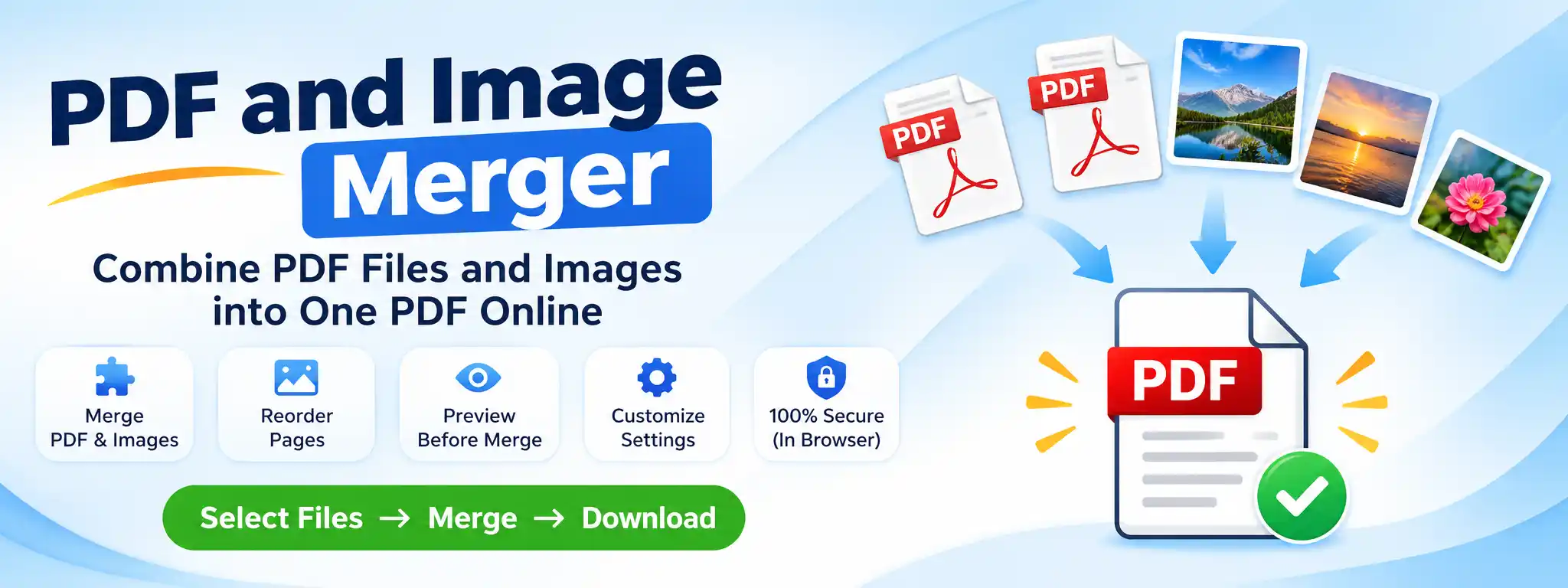
Combine PDF documents and images into one organized PDF using our free PDF and Image Merger. This easy-to-use online tool lets you merge multiple PDF files and images, arrange individual pages, preview your documents, and customize the final PDF without installing any software.
Whether you want to combine multiple PDF documents, convert photos into a single PDF, or create one document from a mixture of PDFs and images, this tool makes the process simple.
With browser-based processing, your files are handled directly on your device and are never uploaded to any server.
What Is a PDF and Image Merger?
A PDF and Image Merger is a tool that combines multiple document formats — PDF pages and image files (JPG, JPEG, PNG, WEBP) — into a single unified PDF document. Instead of dealing with multiple files, you can consolidate everything into one organized document that is easy to share, print, or submit online.
The tool supports individual page-level management, meaning you can reorder pages from different source files, rotate pages that appear sideways, remove pages you don't need, and control the final page size, orientation, margins, and image placement before generating the PDF.
Supported File Formats and Features
The PDF and Image Merger supports commonly used document and image formats.
| Feature | Supported Options |
|---|---|
| 📄 PDF files | |
| 🖼️ Image formats | JPG, JPEG, PNG, WEBP |
| 📚 Multiple files | Yes |
| 🎨 Mixed PDF and images | Yes |
| ↕️ Page reordering | Yes |
| 👁️ Page preview | Yes |
| 🔄 Page rotation | Yes |
| 🗑️ Remove unwanted pages | Yes |
| 📐 Page size | Original, A4, A5, Letter |
| 📏 Orientation | Auto, Portrait, Landscape |
| 🖼️ Image placement | Fit to Page, Fill Page, Original Size |
| ⚙️ DPI settings | 72, 96, 150, 200, 300 DPI |
| 📊 Page margins | 0, 5, 10, 15, 20 mm |
| 🔢 Page numbering | Optional |
| 🔒 Processing | 100% Browser-Based |
📚 External resource: For a deeper understanding of how PDF merging works and best practices for combining documents, see Adobe's official guide to combining PDF files. This is an independent reference provided for additional context.
How to Merge PDF and Image Files Online
Follow these simple steps to combine your PDF documents and images into one PDF file.
- Step 1: Select Your Files — Click Choose Files or drag and drop PDF documents and images onto the upload area. Supported formats: PDF, JPG, JPEG, PNG, WEBP.
- Step 2: Arrange Your Pages — Drag pages to reorder them, switch between Grid and List views, preview individual pages, rotate sideways pages, and remove pages you don't need.
- Step 3: Customize Output Settings — Choose page size, orientation, margins, background colour, and image fit. Open Advanced Image Options to adjust image page size, DPI, and custom dimensions if needed.
- Step 4: Merge and Download — Click Merge PDF, wait for the progress indicator, verify the output filename, page count, and file size, then click Download PDF.
⚡ Key Features
- Merge multiple PDF files into one
- Add JPG, JPEG, PNG, WEBP images
- Individual page reordering
- Preview pages before merging
- Rotate and remove pages
- Custom page size and orientation
- Adjustable margins and background
- Image DPI control
- No software installation required
📄 Common Uses
- Combining multiple PDF documents into one file
- Converting multiple JPG photos into a single PDF
- Combining scanned documents and images
- Preparing documents for online applications
- Creating PDFs from certificates and supporting documents
- Organizing office reports and business documents
- Creating one PDF from invoices, bills, and receipts
- Arranging scanned pages in the correct order
🏆 Why Use This PDF and Image Merger?
Combining documents manually can take time, especially when you have multiple PDFs and images scattered across different folders. This tool brings the entire process together in one place, with full control over the final output.
- Privacy-First Processing — Your files never leave your device. No uploads, no server-side storage, no third-party access.
- Individual Page Control — Unlike basic PDF mergers, you can reorder, rotate, and remove individual pages from different source files.
- Flexible Output — Choose Original, A4, A5, or Letter page sizes; Auto, Portrait, or Landscape orientation; and Fit, Fill, or Original image placement.
- Image Quality Control — Select DPI settings (72–300) for image-based PDF pages depending on your print or submission needs.
- No Installation — Works entirely in your web browser on any device, including smartphones and tablets.
Tips for Creating an Organized PDF
Before downloading your merged document, keep these points in mind:
- Check the page order carefully before merging.
- Preview pages to identify incorrect orientation.
- Use Original page size when you want to retain the existing PDF page dimensions.
- Choose A4 when you need a commonly used document page size.
- Use Fit to Page to display the complete image without cropping.
- Use Fill Page only when you are comfortable with possible cropping at the edges.
- Choose an appropriate DPI setting for the intended print size.
- Give your output PDF a meaningful filename.
🔒 Safe and Secure – No File Uploads
Your privacy matters when working with personal documents, certificates, identity documents, and other important files. Our PDF and Image Merger uses browser-based processing. Your selected files are processed locally in your browser instead of being uploaded to any server.
- No file uploads to any server
- No server-side document storage
- Processing happens entirely on your device
- Your original files remain on your device
- No software installation required
Frequently Asked Questions (FAQs)
Open the PDF and Image Merger, select multiple PDF files from your device, arrange their pages in the required order, and click Merge PDF. Download your combined document when processing is complete.
Yes. You can select PDF documents and supported image files (JPG, JPEG, PNG, WEBP) together. The tool combines their pages into one PDF document.
Yes. You can drag and drop individual pages to change their order. You can also use the arrow buttons on each page card as a keyboard/touch-friendly alternative.
Fit to Page displays the complete content inside the page while keeping the full image or PDF page visible — it may leave some empty space, but nothing is cropped. Fill Page covers the entire page, which may crop parts of the image or PDF page edges.
Yes. The tool processes your selected files directly in your browser. Your files are not uploaded to any server or stored by our website — everything stays on your device.
Password-protected PDFs cannot be processed directly by this tool. You need to unlock the PDF first (using its known password) before adding it to the merger.
Yes. The tool is fully responsive and works on any modern mobile browser — Android and iOS alike. You can upload, reorder, rotate, preview, and download your merged PDF directly from your phone or tablet without installing an app.
Ready to Merge Your PDF and Image Files?
Organize your documents, combine multiple PDF files and images, and create one PDF in just a few steps. The PDF and Image Merger gives you full control over page order, orientation, page size, margins, and image placement — all while keeping the entire process browser-based.
Key takeaways:
✓ Combine PDFs and images · ✓ Reorder, rotate, remove pages · ✓ Customize page size and margins · ✓ 100% browser-based
Select your files, arrange your pages, customize your settings, and download your merged PDF.